Showing posts with label automationscript. Show all posts

Friday, February 23, 2024

Maximo Automation Scripts - Part 3 – Attribute Launch Point

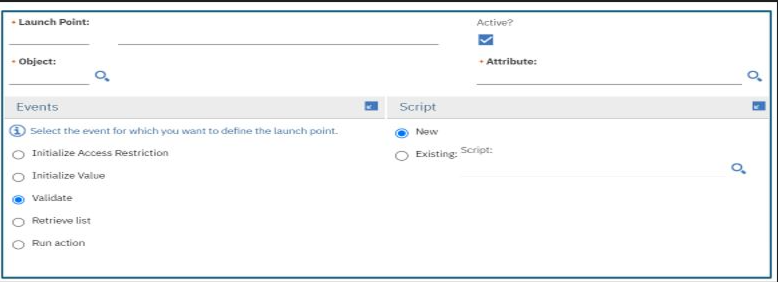
In the last blog we discussed in detail the object launch points. In this blog we will talk about attribute launch points. Attribute launch point is created when we need to trigger an event (validation/action) as soon as the value for the attribute is modified. Below screenshot shows various events available on attribute launch point which we will be discussing in detail here.


Launch Point: Name of the launch point and description.

Object: Name of the object.

Attribute: Provide the name of the attribute on which the script needs to be triggered.

There are two sections visible while creating a new attribute launch point: Events and Script.

Under Events we have:

  • Initialize Access Restriction: This method is used when we need to make fields required or read-only as soon as the record is opened/initialized. For example, you may want to make location field on asset application read-only as soon as the asset record is opened when asset status is OPERATING. This event should be strictly used to make fields required/read-only and no other complex business logic should be written as it may impact the performance of the application. This event is the same as init() method in java class.
  • Initialize Value: This event is used when we want to initialize the values of attributes as soon as the record is opened/initialized. An example would be, setting the value of location field on ASSET object to say “ABC” as soon as the asset record is opened. Just like Initialize Access Restriction, use this event only to initialize the values of the fields and no business logic should be introduced here. This event is the same as initValue() method in java class.
  • Validate: This event is same as validate() method in java class. This event is used when you have to validate data on the current object or related objects before it is processed. For example, while entering the value of location field on ASSET record you want to validate that the location is OPERATING. If not, you can throw an error.
  • Retrieve List: If there is a need to display a dynamic list of values based on certain conditions, retrieve list event can be used. For example, display only OPERATING locations in the location lookup in asset application if the asset status is ACTIVE but if the asset status is not ACTIVE display all types of locations in the lookup. To achieve this, we need to create a table domain in Maximo with object selected as LOCATIONS. Keep the list where clause blank in the table domain. In the automation script we can check for the conditions above and set a dynamic where clause like below:


                    You can also order the list of values using listOrder like, listOrder=”LOCATION”. This event is the same as getList() method in java class.
  • Run Action: This event is same as action() method in the java class. It is used to perform actions (setting the values of one field based on another field, adding new mbosets, throwing errors etc.) when the field value is updated. 

Under Script we have same options as I have already discussed in my earlier blog.


Saturday, February 17, 2024

Maximo Automation Scripts Object Launch point - Part 2

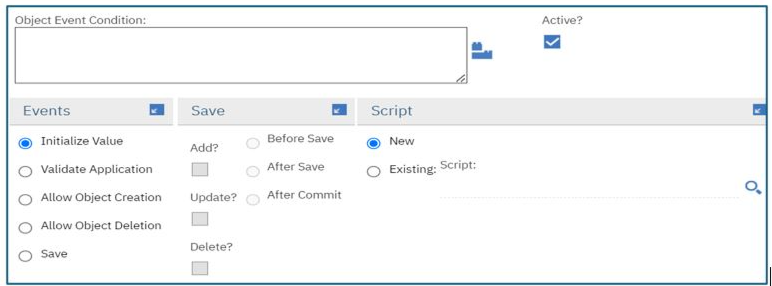
In my earlier blog I have explained in brief about MBO/Object Launch point scripts. These scripts are created when we must perform validations/actions when the object is initialized/created/updated/deleted. Below screenshot shows various events available on object launch point which we will be discussing in detail in this blog.


Launch Point: Provide the name of the launch point and description.

Object: Provide the name of the object on which the script needs to be written (WORKORDER, ASSET etc.).

Object Event Condition: Object event condition is used when you want to filter the records first using a condition (e.g. status==”APPR”) and then execute the code only on that filtered set. This is very useful for performance improvement as the number of records to be processed are filtered even before the code is executed.

There are three sections visible while creating a new object launch point: Events, Save and Script. 

Under Events we have:

  • Initialize Value: Whenever a record is opened (work order, assets etc.)/object is initialized in Maximo, this event will be triggered. With this event we can initialize the values of fields displayed on the record. This event should strictly be used for this purpose only and no other complex business logic/validations should be written in this event as it will create performance issues in the application. This event is same as init() method in the java class.
  • Validate Application: This event is used when mbo needs to be validated against certain business rules and before saving it. For example, validate if a location is entered on SR before it is allowed to be saved. This event is same as appValidate() method in java class.
  • Allow Object Creation: If you want to make certain validations before creating the object, you can do so in this event. As an example, you don’t want users to add anymore PRLINE if the PR is approved. You can write this logic on PRLINE object and check if the associated PR is APPR or not. If PR is in APPR status, you can throw an error. This event is same as canAdd() method in java class.
  • Allow Object Deletion: With this event, you can stop an object from being deleted until certain validations are passed. For example, do not allow to delete an asset (though we do not delete asset ideally and just decommission it) if it has open work orders associated with it. You can throw an error in the script if the validations do not pass. This event is same as canDelete() method in java class.
  • Save: This event is same as save() method in java class. This event can be used when you want to perform any validations/actions when the record is being saved. Save is called from lot of places like, from user interface when we click on save button, can be called when external system is sending requests to Maximo to update objects, can be called from automation scripts/java classes etc. As soon as we select Save option, options under Save section are enabled.

      Under Events we have:

  • Add: This event is called when a new record/object is being created. This is same as toBeAdded () method in java class. For example, when a new record is created, you may want to create another child record and save it along with parent record.
  • Update: As the name suggests, it is triggered when a record is being updated. As an example, you may want to validate certain field values if they are correctly filled in (or not empty), you may want to check the data in other related tables (if related tables have all the information captured) before saving the record. This is same as toBeUpdated() method in java class.
  • Delete: This event is triggered when a record is being deleted. As an example, when a parent record is deleted, you may want to delete all its child records. This event is same as toBeDeleted() method in java class.
  • Before Save: In this event insert/update/delete sql’s are yet to be fired. Such an event can be used in scenarios such as, you want to validate if the WONUM field on the work order follows certain naming convention. If not, throw an error message.
  • After Save: In this event insert/update/delete sql’s are fired but database commit is yet to happen. This event can be used where we must perform certain transactions but if the transactions fail, rollback the transaction since commit has not happened yet. For example, sending a record to an external system through integration. But if sending the record fails due to certain issues, rollback the entire transaction from source (Maximo) system as well.
  • After Commit: In this event, database commit is done post insert/delete/update sql’s are fired. That means the transaction is saved in the database. Such an event can be used when we want to perform an action only when all the Maximo level validations are passed, and the data is committed in the DB. Sending notifications to the users only after a PO is received, is an example where we can use this event.
Under Script we have:
  • New: This radio button is checked when we are creating a new script. By default, this button is selected.
  • Existing: Check this radio button if you want to add this script as a part of an existing script. You can select the existing script name using the script option specified next to the radio button. This will add this script as a launch point in the existing script. As an example, you may have a common code that you want to run from multiple places. You can create a single script and add the common logic in the script. You can then create multiple launch points as per your requirement (from where you want to execute the common code) using “Existing” radio button and select the common script that is created using the lookup next to the radio button.
        In the next blog we will discuss attribute launch point in detail. Happy learning!

Friday, February 9, 2024

Maximo Automation Scripts – Intro: Part 1

 Maximo automation script was introduced for the first time in version 7.5. Since then, it has evolved big time and is now one of the most powerful and commonly used applications by the developers for most of the development.

Scripts are a kind of replacement for java classes. Before Maximo 7.5, developers had only one choice of writing java classes to customize the product functionality. With java classes, there were some pros and cons such as skill set, server downtime etc. IBM has done a great job in revolutionizing automation scripts over the past few years. With Maximo Application Suite (MAS), developers will be able to perform all kinds of customizations (including beans) and there is no need to write any java classes. Though scripts are the way to go in future, it should not always become an obvious choice. One of my earlier Blogs compare’s scripts and java in various aspects which may help you to some extent in taking a decision.

Every automation script consists of launch point, variables, and actual code. Automation scripts can be written at below levels:

  • Mbo, field
  • Integrations
  • Actions
  • Custom Condition
  • Beans (available in MAS)

MBO (Object) Automation Script:

Object level scripts (object launch point) are created when we must perform any business logic, actions, validations etc. when the record/object is initialized/created/updated/deleted. Below screenshot shows various events available on object launch point. I will be explaining these in detail in the future blog.


Field/Attribute Automation Script:

Attribute level scripts are created when we want to trigger an action, initialize field values, make fields required/read only, perform validations etc. as soon as the attribute value is updated. Below screenshot shows various events available on attribute launch point.


Integration Automation Script:

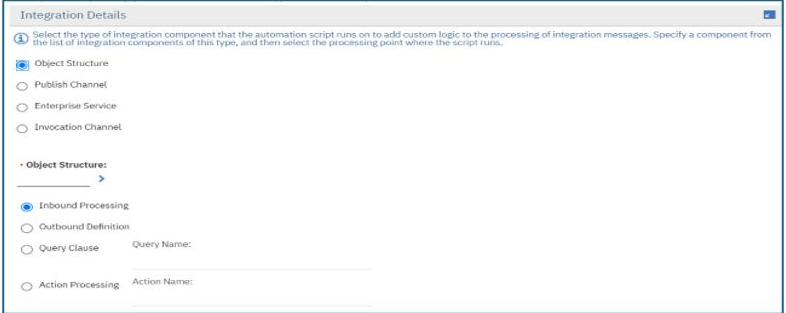
Integration scripts are written for inbound, outbound integrations when we want to do certain validations on some of the fields, change actions on the payload, skip transactions, add/remove fields in the payload request etc. before the data is consumed (in Maximo) or exported (out of Maximo). There are lot of other things that can be done with integration scripts and those will be covered in future blogs.


Action Automation Script:

Maximo has few out of the box actions which comes as a part of Maximo product, and we can also create custom actions using action application. With custom action script, we can perform multiple validations/checks inside the script before triggering an action.

Custom Condition Automation Script:

Like action script, custom condition script can perform validations/checks and return either true or false. Returned value is then used to take appropriate actions. A condition needs to be created in the conditional expression manager and attach this script in the condition as “Class” (Type of condition). Later this condition can be attached to a sig option so that it gets evaluated based on the code written inside the condition script.

Custom condition script can be directly attached to a workflow condition node and depending upon the script output (true/false), workflow will follow the appropriate path.

Bean Automation Script:

Bean classes (app and data bean) are designed more towards handling UI level logic. Till Maximo Application Suite (MAS), scripts were not supporting to handle bean class functionality completely although some basic stuff such as open a dialog, close a dialog are available in 7.6.x version. In MAS, IBM has provided flexibility to call the bean class methods from inside an automation script. Such script names follow a certain format like, for app bean script name should be in the format of APPBEAN.<APPNAME> (APPBEAN.ASSET).

“mxe.script.allowbeanscript” system property needs to be enabled so that script understands that it needs to invoke a bean method. Also, a checkbox, “Allow Invoking Script Functions” needs to be enabled at script level so that the bean method call is accepted and invoked.

For detailed information on bean class support please visit Bean class support. This blog explains new functionalities brought in automation scripts and other areas of Maximo. You may have to register to see the video.

Thanks for reading this blog. Do provide your comments/feedback and don't forget to follow my blog :-)

Monday, January 22, 2024

Maximo - Automation scripts vs Java, what is better?

There always has been an open discussion around whether we should choose automation scripts in Maximo or write a java class to achieve the functionalities. IBM has done lot of work around the automation scripts and lot of enhancements have been incorporated lately, especially around bean classes, in Maximo Application Suite, adding support for the app and data bean classes. For more information you can check below URL:

https://moremaximo.com/discussion/msug-automation-scripts-in-maximo-application-suite

You will see lot of posts around this which helps you take some decisions around this and most of them are inclining towards use of automation scripts.

This makes sense since most of the functionalities now can be achieved through automation scripts instead of a java class where you must have a set up ready to write java classes (eclipse IDE or any other tool), testing requires build and deploy which adds downtime efforts etc. However, with these advantages over java, should scripts be always considered as the primary option for any developer?

Below are some of the pros and cons which I thought would be helpful for taking a decision.

Area

Automation Script

Java Class

Environment Set Up

Not Required. IBM Maximo has a built-in editor.

Need to set up Eclipse IDE or like tool for writing a class.

System Downtime

Not required. System reflects the changes automatically as soon as script is saved.

Need to build Maximo ear and deploy. Deployment requires server downtime.

Code Versioning

No tool is available as such for versioning automation scripts.

Lot of tools (Git Hub) available in the market for maintaining java class versions.

Complex business logic

Complex logic requires complex code and possibly a lengthy one. Code readability could be an issue if the code is lengthy. Even though you can write functions just like java, it is still difficult to read and debug a complete transaction at one go.

Complex business logic can be handled in one or more java classes by writing methods. It is also easier to navigate through the code and debug any complete transaction.

Simple/Medium implementation

Less code, better readability.

Less code, better readability but comes at a cost of downtime.

Control over development

Developers can add many scripts at will without giving much thought at times. Code versioning tool unavailability also makes it difficult to track the scripts and changes.

Better control over development since the availability of code version tools where code reviews can happen and approved before moving them up the stack.


Considering the above possibilities, automation scripts are a great way to handle most of the configurations in Maximo but java classes still needs some attention, especially, for complex business logic and development control where scripts may not be that efficient.

Thanks,

Suhas

Maximo Integration: Design Considerations

IBM Maximo Integration Framework (MIF) is a very powerful tool included as a part of Maximo product which helps in data exchange between Max...